
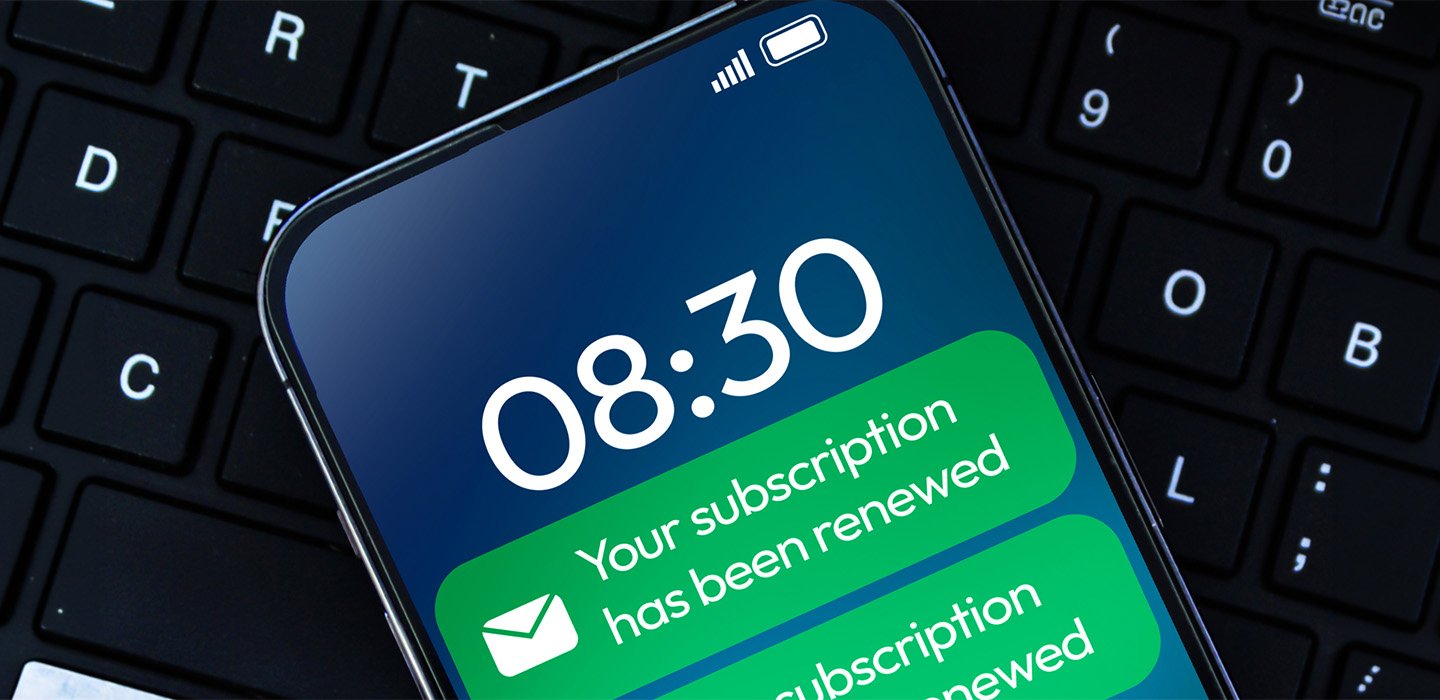



Somewhere in your bank or credit card statement, there may be a subscription you forgot to cancel. A recent CNET survey found that unused subscriptions cost the average person at least $200 a year.
A quick 15-minute review of your accounts can help uncover money that can be used to pay down debt or grow your emergency fund.
Run a Full Statement Sweep
Look at your last three months of bank and credit card statements. Note any monthly, quarterly or yearly charges. For example, you might spot an annual membership fee or a streaming subscription you haven’t used in months.
Next, search your email for words like “subscription confirmed” or “trial ended.” This is a trick to help you find auto-renewals and add-ons that don’t show up clearly on your statements.
Check Your Hidden Subscription Hubs
Your phone and payment accounts may hold subscriptions you haven’t checked in a while. Apple, Google and PayPal list all the linked companies with recurring billing.
These charges often appear as “Apple,” “Google” or “PayPal” purchases on your statement, which makes them easy to overlook.
On iPhone:
- Go to Settings.
- Tap your name.
- Then select Subscriptions to see everything linked to your Apple ID.
On an Android:
- Access Settings.
- Tap Google and then select your name.
- Choose Manage your Google Account.
- Find and tap Wallet & subscriptions.
- Select Manage Subscriptions and see what you’re paying for monthly or annually.
On PayPal (computer or mobile browser):
- Log in to PayPal.
- Tap Settings (gear icon), then Payment preferences and choose Manage Automatic Payments.
- Select the subscription, press Cancel and confirm.
On PayPal (in app):
- Open the app.
- Tap Menu.
- Tap Subscriptions, then select Linked Businesses or Pay Bills.
- Tap the merchant to view or update the subscription.
- Tap Account or Manage.
- Select Change or Link a Card or Bank or select Stop Paying with PayPal.
- Tap Unlink to confirm the cancellation.
If you have questions about removing charges or see ones you don’t recognize in PayPal, click Contact or Help in the app or on the website.
Sort Your Subscriptions Into Three Categories
Once you gather everything, sort your subscriptions into essential, valued or nonessential. Seeing everything in one place can help you decide what you need.
- Essential: Services you need for daily life or work, like cloud storage for your photos or work documents.
- Valued: Subscriptions you use regularly and enjoy, like a streaming service you watch every week.
- Nonessential: Anything you rarely use, like a meal kit you forgot to pause or a delivery service.
Seeing everything in one place can help you decide what you need.
Ask For a Better Deal Before You Cancel
Many companies try to keep customers by offering discounts. When you call to cancel, you may be offered a deal to stay. This gives you room to negotiate. If you prefer not to call, look for online options, which may also show lower‑priced offers.
Downgrade Before Canceling
Check if there’s a less expensive plan available. Many streaming services have ad-supported tiers that cost less than their premium plans.
Compare what each plan includes and how you use it. Switching from a $22.99 plan to a $6.99 ad‑supported one could save you $192 a year.
Cancel With Confidence
Canceling should be simple, but many companies make it more difficult. The Federal Trade Commission has taken steps to limit these bad practices, such as hard-to-find cancel buttons, required phone calls and warnings meant to make you feel guilty.
If you cancel via phone call, write down the date, time and confirmation number in case charges continue.
The California Automatic Renewal Law is designed to help people easily cancel subscriptions and avoid surprise charges. There is also a proposed federal bill, the Unsubscribe Act, which, if passed, would make it as easy to cancel subscriptions as it is to sign up.
Make Subscription Checks a Habit
Set a reminder to review your subscriptions every three months. A regular review helps you catch new charges.
Log in to Online or Mobile Banking to start your review today.